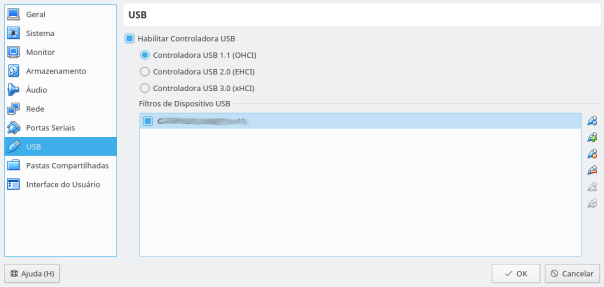
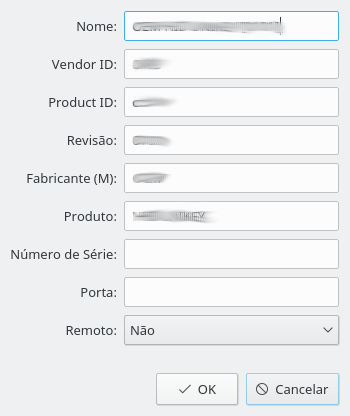
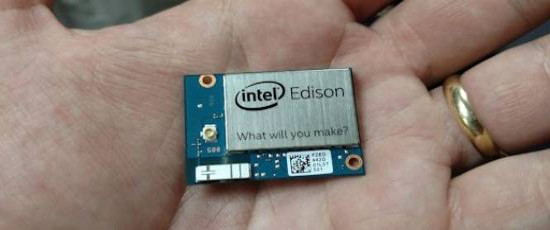
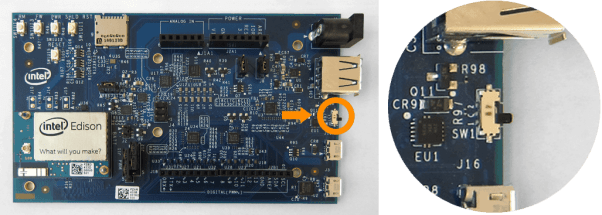
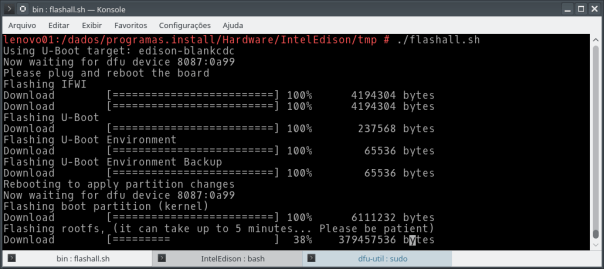
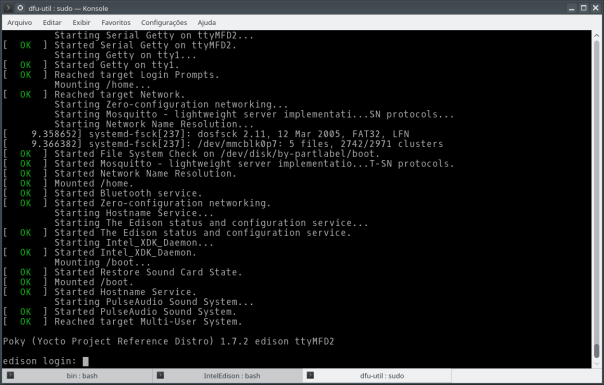
Quando as coisas começam não funcionar, é melhor para e relaxar, então fui finalizar o projeto IoT com biometria de código aberto (como não sei tocar violão como o PP e o Fernando Galves). Resumidamente compilei o client em C do openCertiface para fechar as próximas palestras.
Porque C? Claro que o serviço openCertiface pode ser consumido em PHP, Python, Shell e muitas outras linguagens. Mas quando falamos de computação embarcada, otimizar recurso preciso é para um jedi.
Partindo do princípio que as ferramentas para compilação nativa esta configura baseada no post anterior, vamos ao próximos passos:
Compilando o GSOAP para o Intel Edison
$ source /opt/poky-edison/1.7.2/environment-setup-core2-32-poky-linux
$ cd gsoap-2.8/
$ ./configure
configure: loading site script /opt/poky-edison/1.7.2/site-config-core2-32-poky-linux
checking for a BSD-compatible install... /usr/bin/install -c
checking whether build environment is sane... yes
checking for a thread-safe mkdir -p... /usr/bin/mkdir -p
checking for gawk... gawk
checking whether make sets $(MAKE)... yes
checking whether make supports nested variables... yes
checking build system type... x86_64-unknown-linux-gnu
checking host system type... x86_64-unknown-linux-gnu
checking whether make sets $(MAKE)... (cached) yes
checking whether the C++ compiler works... yes
checking for C++ compiler default output file name... a.out
checking for suffix of executables...
checking whether we are cross compiling... no
checking for suffix of object files... o
checking whether we are using the GNU C++ compiler... yes
checking whether i586-poky-linux-g++ -m32 -march=core2 -mtune=core2 -msse3 -mfpmath=sse -mstackrealign -fno-omit-frame-pointer --sysroot=/opt/poky-edison/1.7.2/sysroots/core2-32-poky-linux accepts -g... yes

$ make
Agora efetue o download do openCertiface no GIT e aplique o patch (disponível neste LINK ) para efetuar a compilação para a plataforma Intel Edison.

$ cd opencertiface/src
$ patch Makefile ../../Makefile.patch
patching file Makefile
$ cd ..
Com o aplicativo soap2cpp criaremos as funçoes em C.
$ ../gsoap-2.8/gsoap/src/soapcpp2 -e -b -c -T -I/usr/share/gsoap/import:/usr/share/gsoap functions.h

** The gSOAP code generator for C and C++, soapcpp2 release 2.8.29
** Copyright (C) 2000-2016, Robert van Engelen, Genivia Inc.
** All Rights Reserved. This product is provided "as is", without any warranty.
** The soapcpp2 tool and its generated software are released under the GPL.
** ----------------------------------------------------------------------------
** A commercial use license is available from Genivia Inc., contact@genivia.com
** ----------------------------------------------------------------------------

Saving soapStub.h annotated copy of the source interface file
Saving soapH.h serialization functions to #include in projects
Using ns service name: opencertiface
Using ns service style: rpc
Using ns service encoding: encoded
Using ns service location: http://opencertiface.com.br/opencertiface.cgi
Using ns schema namespace: urn:opencertiface
Saving opencertiface.wsdl Web Service description
Saving opencertiface.ping.req.xml sample SOAP/XML request
Saving opencertiface.ping.res.xml sample SOAP/XML response
Saving opencertiface.verifyImg.req.xml sample SOAP/XML request
Saving opencertiface.verifyImg.res.xml sample SOAP/XML response
Saving opencertiface.nsmap namespace mapping table
Saving soapTester.c server auto-test code
Saving ns.xsd XML schema
Saving soapClient.c client call stub functions
Saving soapClientLib.c client stubs with serializers (use only for libs)
Saving soapServer.c server request dispatcher
Saving soapServerLib.c server request dispatcher with serializers (use only for libs)
Saving soapC.c serialization functions

Compilation successful
Pronto, agora basta o comando make para compilar os respectivos módulos. E a seguir copie os binários para o Intel Edison e execute-os conforme a figura ao final deste post.
$ make soapC.o
i586-poky-linux-gcc -m32 -march=core2 -mtune=core2 -msse3 -mfpmath=sse \
-mstackrealign -fno-omit-frame-pointer \
--sysroot=/opt/poky-edison/1.7.2/sysroots/core2-32-poky-linux -DLINUX \
-c -I ../gsoap-2.8/gsoap/ soapC.c -o soapC.o

$ make soapClient.o
i586-poky-linux-gcc -m32 -march=core2 -mtune=core2 -msse3 -mfpmath=sse \
-mstackrealign -fno-omit-frame-pointer \
--sysroot=/opt/poky-edison/1.7.2/sysroots/core2-32-poky-linux -DLINUX \
-c -I ../gsoap-2.8/gsoap/ soapClient.c -o soapClient.o

$ make clientVerifyImg
i586-poky-linux-gcc -m32 -march=core2 -mtune=core2 -msse3 -mfpmath=sse \
-mstackrealign -fno-omit-frame-pointer \
--sysroot=/opt/poky-edison/1.7.2/sysroots/core2-32-poky-linux -DLINUX \
-O2 -pipe -g -feliminate-unused-debug-types \
-c -o clientVerifyImg.o clientVerifyImg.c
i586-poky-linux-gcc -m32 -march=core2 -mtune=core2 -msse3 -mfpmath=sse \
-mstackrealign -fno-omit-frame-pointer \
--sysroot=/opt/poky-edison/1.7.2/sysroots/core2-32-poky-linux -DLINUX \
-I ../gsoap-2.8/gsoap/ -DLINUX -g -O2 clientVerifyImg.o soapClient.o \
soapC.o ../gsoap-2.8/gsoap/libgsoap.a -o clientVerifyImg

$ make clientPING
i586-poky-linux-gcc -m32 -march=core2 -mtune=core2 -msse3 -mfpmath=sse \
-mstackrealign -fno-omit-frame-pointer \
--sysroot=/opt/poky-edison/1.7.2/sysroots/core2-32-poky-linux -DLINUX \
-O2 -pipe -g -feliminate-unused-debug-types \
-c -o clientPING.o clientPING.c
i586-poky-linux-gcc -m32 -march=core2 -mtune=core2 -msse3 -mfpmath=sse \
-mstackrealign -fno-omit-frame-pointer \
--sysroot=/opt/poky-edison/1.7.2/sysroots/core2-32-poky-linux -DLINUX \
-I ../gsoap-2.8/gsoap/ -DLINUX -g -O2 clientPING.o soapClient.o \
soapC.o ../gsoap-2.8/gsoap/libgsoap.a -o clientPING